⚡
Rush from the waiter's phone
A “Rush” switch beside every Send-to-kitchen button. The order jumps to the top of the kitchen screen and the paper KOT prints *** RUSH ***.
ZingBills KDS puts every order on a screen in your kitchen the moment it is sent — from the counter, a waiter's phone or a customer's QR order. No paper tickets to lose, cards that turn red when an order runs late, and a board that always shows the next order to cook first. Works on an Android TV, a smart-TV browser, a tablet or a phone, in English or Hindi.

Every order is a card with a big table or token number and a live timer. The card is green while it is on time, amber as it gets close to your own prep-time target (biryani 20 minutes, lassi 5 — you set them per category) and red once it is late, with one extra chime.
The order of the cards follows one rule: RUSH first, then the most late, then the oldest. The next order to cook is always top-left, so nobody has to scan the whole screen at peak hour. On a big TV the cards fill the screen column by column, a page at a time; on a phone they scroll.
Late orders cannot hide at the bottom of a list, and a cook never has to decide what to make next.
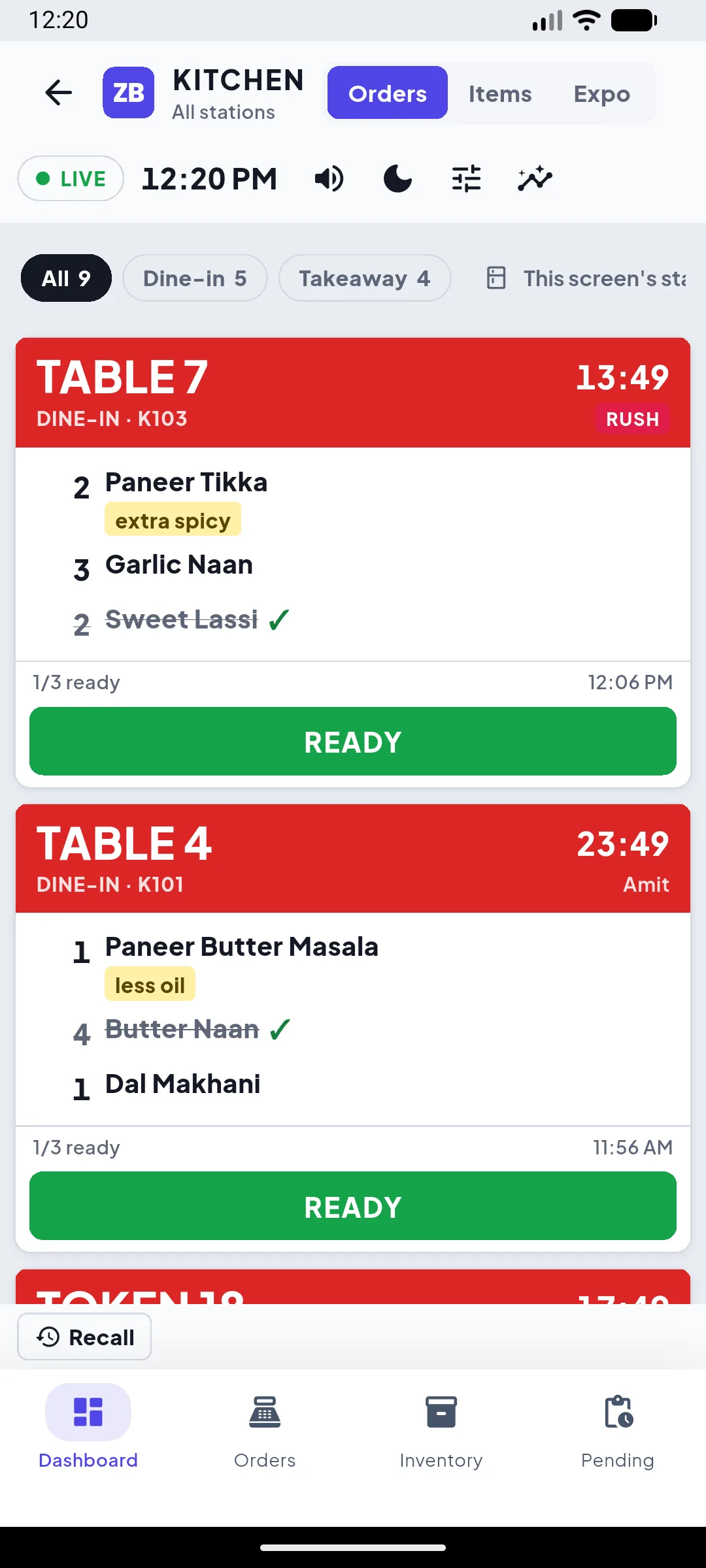
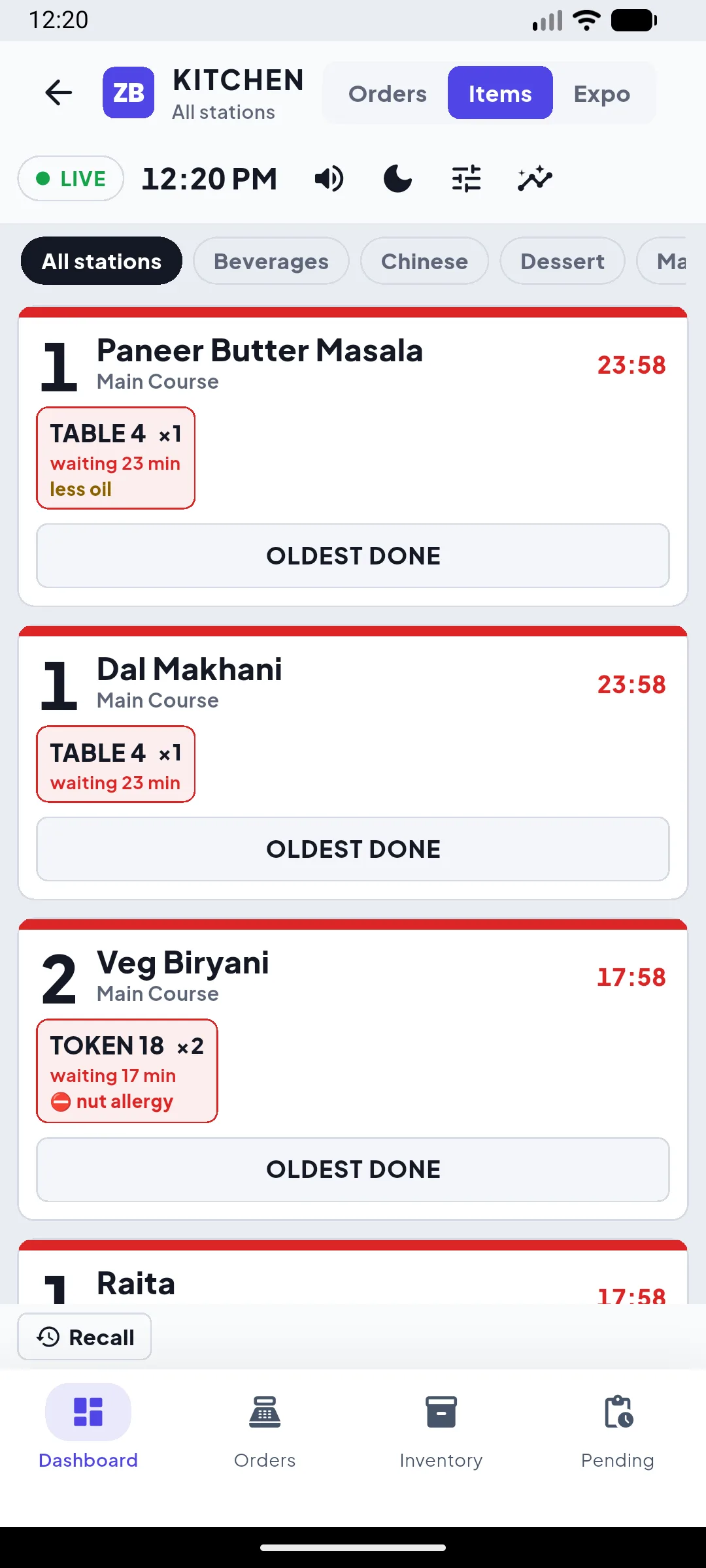
Each card has one big button for the next step — Start, Ready, Served. Cooks who work dish by dish tick dishes instead: when the last dish is ticked, the order moves to Ready by itself, with Undo for six seconds in case of a wrong tap.
Instructions can't be missed: notes such as “less oil” or “jain” are yellow chips under the dish, and allergies are red. The Item view turns the board around — one card per dish with every order that needs it — and an All day list adds the same dish up across all open orders, so the tandoor knows it owes eleven butter naan, not five separate tickets.
Fewer taps for the kitchen, fewer missed allergies, and batch cooking without counting tickets by hand.

Give each screen its own station — Tandoor, Chinese, Bar — and it shows only that station's dishes. When the last station finishes its part, the order turns Ready by itself.
The Expo view shows three lanes: New, Cooking and Ready to pick up. Each card shows every station's progress (“Tandoor 1/2 · Beverages ✓”) and a ready order shows how long it has waited at the pass. On a phone the lanes become tabs.
Whoever runs the pass sees what is still missing for every table, and food stops going cold on the counter.
A “Rush” switch beside every Send-to-kitchen button. The order jumps to the top of the kitchen screen and the paper KOT prints *** RUSH ***.
Pair an Android TV, a smart-TV browser or a tablet with a 6-digit code — nobody types a password on the TV. Phones and tablets get the same board.
Arrow keys move between orders and dishes, OK does the next step, holding OK opens the order menu, and 1–9 bump an order straight away. No touchscreen needed.
A dark board for a dim kitchen, a light one for a bright pass, and the whole screen in Hindi if your kitchen prefers it.
A red strip appears the moment the connection is lost and a green one when it is back. Orders are kept on the device and sent again automatically — never silently lost.
Send starters now and hold mains and dessert until you fire them. The kitchen report shows average prep time, late orders, orders by hour and the load on each station.
At the counter, on a waiter's phone at the table, or through a customer's scan-to-order QR. Tap KOT to send it to the kitchen — with or without a paper slip.
The order appears on the kitchen TV within a second, with a chime. Start it, tick dishes as they are plated, and the screen keeps the late ones on top.
Ready orders show on the Expo lane for the pass and the waiter. Dine-in orders close when the table's bill is made; takeaway tokens close when they are served.
Prefer paper? See KOT software. Deciding between a screen and a printer? Read Kitchen Display System vs KOT printer and what a KOT is, or see the restaurant & café and cloud kitchen setups.
A Kitchen Display System is a screen in the kitchen that shows every order as soon as it is taken, instead of a printed KOT slip. Cooks start, tick and finish orders on the screen, and the counter and waiters see when food is ready.
Any Android TV or Android TV box, a smart TV with a web browser, an Android tablet or a phone. You pair the screen with a 6-digit code from the ZingBills app; nothing else needs to be installed on the counter.
Yes. Arrow keys move between orders and dishes, OK does the next step (Start, Ready, Served), holding OK opens the order menu, and the number keys 1 to 9 bump an order directly.
RUSH orders first, then the orders that are most late against your own prep-time targets, then the oldest. A waiter can mark an order RUSH from their phone while sending it to the kitchen.
Orders taken while the internet is down are kept on the device and sent again automatically when it returns. The kitchen screen shows a red strip as soon as the connection drops and a green one when it is back, so nobody wonders why orders stopped.
Yes. Each store can print paper KOTs, use the Kitchen Display, or both. A store that only uses the Kitchen Display sends orders to the screen without printing a slip on the bill printer.
Yes. The whole kitchen board, its menus and the Expo view can be switched to Hindi from the board menu on the TV itself.
The Kitchen Display is included in the Growth plan and above; higher plans allow more kitchen screens. See the pricing page for the screens in each plan.
Free to start, no card, no sales call. Add your restaurant or shop name, your menu, and print.